# Why RatifyHub?

RatifyHub is a product rating app that allows you to collect reviews and ratings from your customers and use their feedback to make informed decisions about your products. Our app is designed to be easy to use and provides you with all the tools you need to get honest feedback: review requests, questions and answers, custom forms. Integrated with Google Shopping to display aggregated reviews for your products to customers shopping on Google. Easy import/export review data for backup purposes.

**App features:**

* Use photo & video reviews to display social proof and build trust with customers.
* Display review widget in 3 layouts: list, stack, masonry. Easy to customize.
* Engage your reviewers with Q\&A, voucher code, and review request emails.
* Share reviews on Facebook, Twitter, Pinterest, rich snippets and Google Shopping
* 1-click to import/export reviews and related data for backup purposes


# Display review widget

After installing the application, the Review Widget is already displayed on the product page, if you want to display it on another page, we will guide you.

### Display review widget on home page

To display review widget on product page, you need to follow these steps:

1. Go to admin page > Sales channels > Online store > Themes

<figure><img src="https://3138926102-files.gitbook.io/~/files/v0/b/gitbook-x-prod.appspot.com/o/spaces%2FkmxQ2E6lgGGdZns4lm8c%2Fuploads%2F3GXUHrXRDRgOU0t77N8r%2Fimage.png?alt=media&amp;token=159f57b3-ccd4-42a6-be1a-73668292cef3" alt=""><figcaption></figcaption></figure>

2. Select the theme you want to display the Review widget > Customize

<figure><img src="https://3138926102-files.gitbook.io/~/files/v0/b/gitbook-x-prod.appspot.com/o/spaces%2FkmxQ2E6lgGGdZns4lm8c%2Fuploads%2FVCIrG4BEECunDfdyDzSl%2Fimage.png?alt=media&amp;token=39fae39e-effc-49c2-b9f6-1b41678f7ae1" alt=""><figcaption></figcaption></figure>

3. In the theme editor, select home page

<figure><img src="https://3138926102-files.gitbook.io/~/files/v0/b/gitbook-x-prod.appspot.com/o/spaces%2FkmxQ2E6lgGGdZns4lm8c%2Fuploads%2FJiCOSlral4x3KO1LZYda%2Fimage.png?alt=media&amp;token=e09815eb-7c2b-4fdd-977c-b47563c4d178" alt=""><figcaption></figcaption></figure>

4. Select "Sections" > Add section

<figure><img src="https://3138926102-files.gitbook.io/~/files/v0/b/gitbook-x-prod.appspot.com/o/spaces%2FkmxQ2E6lgGGdZns4lm8c%2Fuploads%2FT3RS9nN0ngMMuyy9H2L3%2Fimage.png?alt=media&amp;token=17a5c07b-b9ba-454d-abbc-0a58c00ffa9a" alt=""><figcaption></figcaption></figure>

5. Find Review widget of RatifyHub and add to your product page.

<figure><img src="https://3138926102-files.gitbook.io/~/files/v0/b/gitbook-x-prod.appspot.com/o/spaces%2FkmxQ2E6lgGGdZns4lm8c%2Fuploads%2FwuwQT9E7yQf0gD4kqElO%2Fimage.png?alt=media&amp;token=0b2151ec-3bc7-4c66-9e09-4aab84ce6900" alt=""><figcaption></figcaption></figure>

6. Save and view changes.

<figure><img src="https://3138926102-files.gitbook.io/~/files/v0/b/gitbook-x-prod.appspot.com/o/spaces%2FkmxQ2E6lgGGdZns4lm8c%2Fuploads%2F9ddWLkKqyS68jHGcZUtY%2Fimage.png?alt=media&amp;token=175cdb44-2612-4cc9-9dc0-9b67cf918c04" alt=""><figcaption></figcaption></figure>

### Display review widget on product page

To display review widget on product page, you need to follow these steps:

1. Go to admin page > Sales channels > Online store > Themes

<figure><img src="https://3138926102-files.gitbook.io/~/files/v0/b/gitbook-x-prod.appspot.com/o/spaces%2FkmxQ2E6lgGGdZns4lm8c%2Fuploads%2F3GXUHrXRDRgOU0t77N8r%2Fimage.png?alt=media&amp;token=159f57b3-ccd4-42a6-be1a-73668292cef3" alt=""><figcaption></figcaption></figure>

2. Select the theme you want to display the Review widget > Customize

<figure><img src="https://3138926102-files.gitbook.io/~/files/v0/b/gitbook-x-prod.appspot.com/o/spaces%2FkmxQ2E6lgGGdZns4lm8c%2Fuploads%2FVCIrG4BEECunDfdyDzSl%2Fimage.png?alt=media&amp;token=39fae39e-effc-49c2-b9f6-1b41678f7ae1" alt=""><figcaption></figcaption></figure>

3. In the theme editor, select a product page

<figure><img src="https://3138926102-files.gitbook.io/~/files/v0/b/gitbook-x-prod.appspot.com/o/spaces%2FkmxQ2E6lgGGdZns4lm8c%2Fuploads%2FYBY41L59oy83fcZMHzVb%2Fimage.png?alt=media&amp;token=6cf9dac3-cab0-4174-b7d6-01c5d4289135" alt=""><figcaption></figcaption></figure>

4. Select "Sections" > Add section

<figure><img src="https://3138926102-files.gitbook.io/~/files/v0/b/gitbook-x-prod.appspot.com/o/spaces%2FkmxQ2E6lgGGdZns4lm8c%2Fuploads%2F1051gBrzkoCxRrKIol5r%2Fimage.png?alt=media&amp;token=45af9f9e-ee22-424d-8207-e803fdae3881" alt=""><figcaption></figcaption></figure>

5. Find Review widget of RatifyHub and add to your product page.

<figure><img src="https://3138926102-files.gitbook.io/~/files/v0/b/gitbook-x-prod.appspot.com/o/spaces%2FkmxQ2E6lgGGdZns4lm8c%2Fuploads%2Ft54FPJWe3kagX73rGwnm%2Fimage.png?alt=media&amp;token=ed6365a0-5a05-4b43-af01-fa990053ce62" alt=""><figcaption></figcaption></figure>

6. Save and view changes.

<figure><img src="https://3138926102-files.gitbook.io/~/files/v0/b/gitbook-x-prod.appspot.com/o/spaces%2FkmxQ2E6lgGGdZns4lm8c%2Fuploads%2FkiGtPPiEID0qLlCn72nR%2Fimage.png?alt=media&amp;token=358fb73a-3480-4c90-977c-eb0af36169ba" alt=""><figcaption></figcaption></figure>


# Display Review carousel

Displaying reviews as a carousel helps visitors get an overview of the best reviews from customers, helping to increase your trust with customers.

#### How to add review carousel to a page

1. Go to admin page > Sales channels > Online store > Themes

<figure><img src="https://3138926102-files.gitbook.io/~/files/v0/b/gitbook-x-prod.appspot.com/o/spaces%2FkmxQ2E6lgGGdZns4lm8c%2Fuploads%2F3GXUHrXRDRgOU0t77N8r%2Fimage.png?alt=media&amp;token=159f57b3-ccd4-42a6-be1a-73668292cef3" alt=""><figcaption></figcaption></figure>

2. Select the theme you want to display the Review widget > Customize

<figure><img src="https://3138926102-files.gitbook.io/~/files/v0/b/gitbook-x-prod.appspot.com/o/spaces%2FkmxQ2E6lgGGdZns4lm8c%2Fuploads%2FVCIrG4BEECunDfdyDzSl%2Fimage.png?alt=media&amp;token=39fae39e-effc-49c2-b9f6-1b41678f7ae1" alt=""><figcaption></figcaption></figure>

3. In the theme editor, select home page

<figure><img src="https://3138926102-files.gitbook.io/~/files/v0/b/gitbook-x-prod.appspot.com/o/spaces%2FkmxQ2E6lgGGdZns4lm8c%2Fuploads%2FJiCOSlral4x3KO1LZYda%2Fimage.png?alt=media&amp;token=e09815eb-7c2b-4fdd-977c-b47563c4d178" alt=""><figcaption></figcaption></figure>

4. Select "Sections" > Add section

<figure><img src="https://3138926102-files.gitbook.io/~/files/v0/b/gitbook-x-prod.appspot.com/o/spaces%2FkmxQ2E6lgGGdZns4lm8c%2Fuploads%2FT3RS9nN0ngMMuyy9H2L3%2Fimage.png?alt=media&amp;token=17a5c07b-b9ba-454d-abbc-0a58c00ffa9a" alt=""><figcaption></figcaption></figure>

5. Find Review carousel of RatifyHub and add to your product page.

<figure><img src="https://3138926102-files.gitbook.io/~/files/v0/b/gitbook-x-prod.appspot.com/o/spaces%2FkmxQ2E6lgGGdZns4lm8c%2Fuploads%2FMGWqEODLmc9HNxNaGxbf%2Fimage.png?alt=media&amp;token=31379451-d211-4c46-a499-968ec04d853e" alt=""><figcaption></figcaption></figure>

6. Save and view changes

<figure><img src="https://3138926102-files.gitbook.io/~/files/v0/b/gitbook-x-prod.appspot.com/o/spaces%2FkmxQ2E6lgGGdZns4lm8c%2Fuploads%2F1WYLts6HF2HVnYmnqWaN%2Fimage.png?alt=media&amp;token=b7ff5a36-7531-4351-8082-f8603566de5c" alt=""><figcaption></figcaption></figure>


# Product reviews feed

A product reviews feed is needed to show aggregated reviews of your products to customers shopping on Google. Eligible accounts can upload a product reviews feed to Merchant Center.

### Before you begin

Sign up for the Product Ratings program using the [Product Ratings Interest Form](https://support.google.com/merchants/troubleshooter/10994881). Before signing up, make sure you have at least 50 product reviews.

#### Upload a new product reviews feed

1. Sign in to your[ Merchant Center account.](https://merchants.google.com/)
2. Click **Marketing** in the navigation menu.
3. Click **Product reviews**.
4. Click **Product reviews feeds** to open the “Feeds” page.
5. Click the plus button <img src="https://storage.googleapis.com/support-kms-prod/Ns5o4jgOAKaw8NnTPog3UMQHzmGiCUG3utl0" alt="" data-size="line"> on the “Feeds” page.
6. Give your feed a name.
7. Choose an upload method.
8. Configure your feed options for the method you've chosen:
   1. Enter the file name.
   2. Select the fetch frequency from the drop-down menu.
   3. Select the fetch time from the drop-down menu.
   4. Select the time zone from the drop-down menu.
   5. Enter the file URL.
      * If your URL is password-protected, provide your login info.
9. Click **Continue**.

#### Review feed processing results

1. Sign in to your [Merchant Center account](https://www.google.com/retail/solutions/merchant-center/).
2. Click **Marketing** in the navigation menu.
3. Click **Product reviews**.
4. Click **Product reviews feeds** to open the “Feeds” page.
5. Click the product reviews feed name that you’d like to review.
6. Review the results:
   * **Properties**: This includes key feed properties, which vary depending on the input method of the feed. Here, you can find attributes such as input method, time zone, file size, detected delimiter (if applicable), and more.
   * **Attributes**: Depending on which Merchant Center program your feed is opted into, we require attributes to adhere to the product data specification. In this section, you can review all of the attributes we found in your feed, including those attributes which are recognized and map to the feed specification, and also unrecognized attributes which don’t match any of those listed in the data specification.
   * **Processing Data**: In this section, you can review the amount of items found in your feed as well as those with any detected item issues. Review the list of item issues to understand how many items in your feed are impacted, including examples and links to documentation to address the issue.

{% hint style="info" %}
**Note:** Whether you choose a scheduled fetch or a direct upload, you'll need to upload a feed at least once a month so that you'll remain eligible to participate. Make sure the file name you provide includes the appropriate extension (.zip for a ZIP file and .xml for a single XML file). [Learn more about uploading data feeds](https://support.google.com/merchants/answer/188477)
{% endhint %}

After you've registered a new feed, it'll appear in your list of registered feeds in the "Feeds" screen. A feed can be in the following states:

* **Processing**: Indicates that feed validation is in progress.
* **Processed**: Indicates that Google has successfully received and validated the feed.
* **Failed**: Indicates that feed validation wasn't successful and the feed content won't be processed further. You must correct the feed and upload the file again.

{% hint style="info" %}
**Note:** To delete an existing review, simply exclude it from your uploaded feed. Previously submitted reviews that aren't included in new uploads will be removed.
{% endhint %}


# Display Review star rating

Display star rating on product detail page

#### How to add Review star rating

1. Go to admin page > Sales channels > Online store > Themes.

<figure><img src="https://3138926102-files.gitbook.io/~/files/v0/b/gitbook-x-prod.appspot.com/o/spaces%2FkmxQ2E6lgGGdZns4lm8c%2Fuploads%2FkLiENDsD9FMXiRciafat%2Fimage.png?alt=media&amp;token=f329fb87-81ed-4035-9a32-424485baf0ec" alt=""><figcaption></figcaption></figure>

2. Select the theme you want to display the Review star rating > Customize.

<figure><img src="https://3138926102-files.gitbook.io/~/files/v0/b/gitbook-x-prod.appspot.com/o/spaces%2FkmxQ2E6lgGGdZns4lm8c%2Fuploads%2FQV9PKcQtSHTO9sU8huvE%2Fimage.png?alt=media&amp;token=c52540c8-d8e1-4ce3-ae7c-c90587cef361" alt=""><figcaption></figcaption></figure>

3. In the theme editor, select a product page.

<figure><img src="https://3138926102-files.gitbook.io/~/files/v0/b/gitbook-x-prod.appspot.com/o/spaces%2FkmxQ2E6lgGGdZns4lm8c%2Fuploads%2FygOlXdivL42qyjNWocq4%2Fimage.png?alt=media&amp;token=4373d45d-390a-4516-b8ed-0f39e32061f9" alt=""><figcaption></figcaption></figure>

4. Find "Star rating" of RatifyHub - product reviews and to your product page.

<figure><img src="https://3138926102-files.gitbook.io/~/files/v0/b/gitbook-x-prod.appspot.com/o/spaces%2FkmxQ2E6lgGGdZns4lm8c%2Fuploads%2FGouAGVodtE4RhQu2NKvB%2Fimage.png?alt=media&amp;token=c2801eab-ae8a-41c0-95fa-c6d6207d55ce" alt=""><figcaption></figcaption></figure>

5. You can move the block to another position you want.

<figure><img src="https://3138926102-files.gitbook.io/~/files/v0/b/gitbook-x-prod.appspot.com/o/spaces%2FkmxQ2E6lgGGdZns4lm8c%2Fuploads%2Fj3wiK1LvOYRqG0smHNul%2Fimage.png?alt=media&amp;token=757076e5-6699-45a4-a927-fc7dd32c8db3" alt=""><figcaption></figcaption></figure>

6. Save and view changes.


# Display star rating for each product in the product list

1. Go to admin page > Sales channels > Online store > Themes.

<figure><img src="https://3138926102-files.gitbook.io/~/files/v0/b/gitbook-x-prod.appspot.com/o/spaces%2FkmxQ2E6lgGGdZns4lm8c%2Fuploads%2FIgKth8yefIOFKO8RBN4n%2Fimage.png?alt=media&amp;token=ee21d4f7-9dbf-490b-b3e8-42bfd3446c35" alt=""><figcaption></figcaption></figure>

2. Select the theme you want to display the Review widget > Edit code.

<figure><img src="https://3138926102-files.gitbook.io/~/files/v0/b/gitbook-x-prod.appspot.com/o/spaces%2FkmxQ2E6lgGGdZns4lm8c%2Fuploads%2FqbjTJ9ghd4M9SM3f76pV%2Fimage.png?alt=media&amp;token=07540de6-d45e-47da-b135-943b466ec697" alt=""><figcaption></figcaption></figure>

3. In theme editor, open file  *Snippets/card-product.liquid*

<figure><img src="https://3138926102-files.gitbook.io/~/files/v0/b/gitbook-x-prod.appspot.com/o/spaces%2FkmxQ2E6lgGGdZns4lm8c%2Fuploads%2FyRjl1wrfK3sz33YSfyNO%2Fimage.png?alt=media&amp;token=d47411b4-2fee-4095-9ec5-7a20127a7704" alt=""><figcaption></figcaption></figure>

4. Add code to the file *Snippets/card-product.liquid*

Copy the code below:&#x20;

```html
<div class="rh-rv-prod-featured" data-id="{{ card_product.id }}" data-avg-rating="{{ card_product.metafields.ratifyhub.widget.avg }}" data-total-rating="{{ card_product.metafields.ratifyhub.widget.total }}"></div>
```

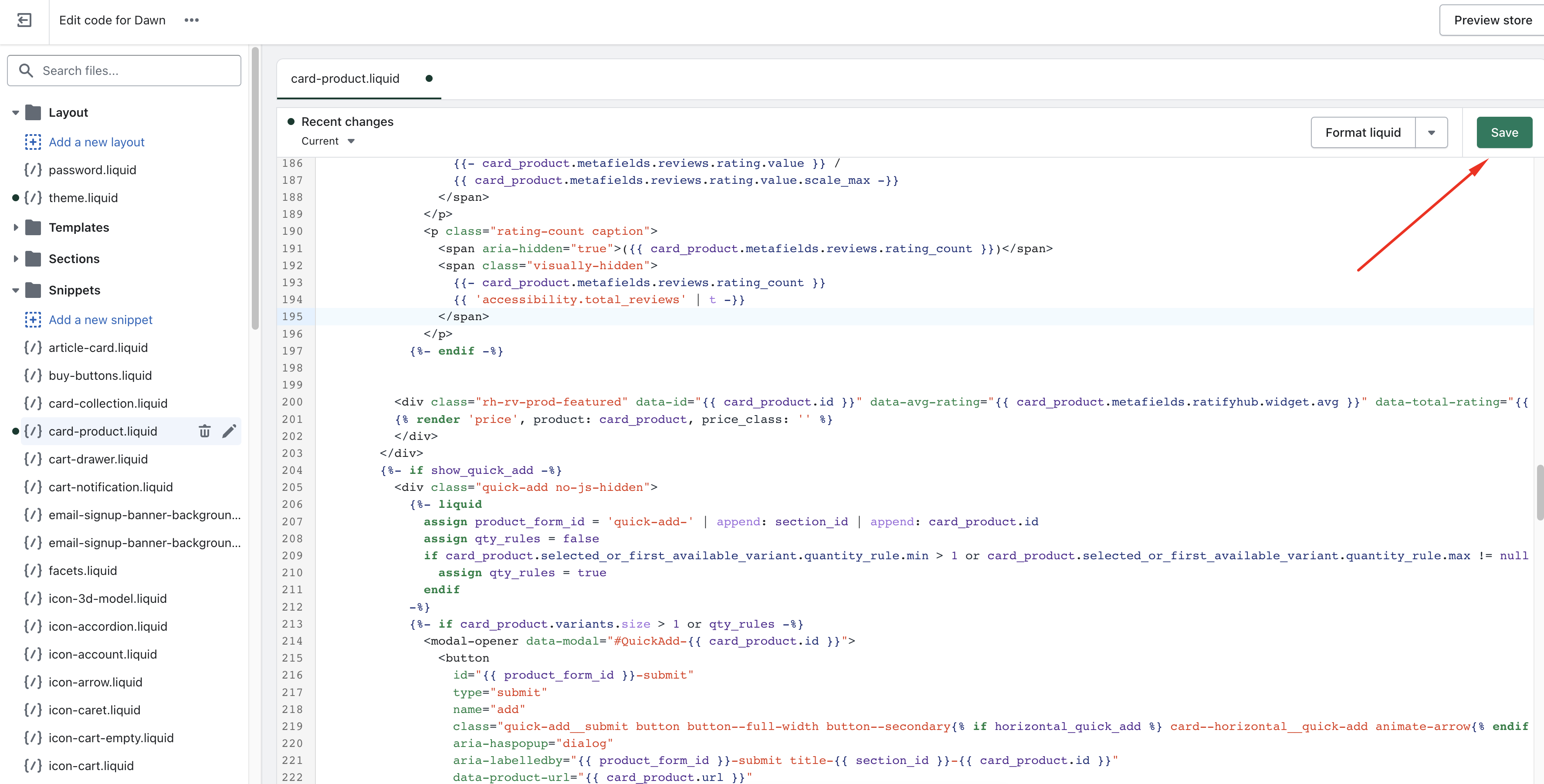
Find the line with the same or similar code:  `{% render 'price', product: card_product, price_class: '' %}`  and paste the copied code above it.

<figure><img src="https://3138926102-files.gitbook.io/~/files/v0/b/gitbook-x-prod.appspot.com/o/spaces%2FkmxQ2E6lgGGdZns4lm8c%2Fuploads%2FqIyd9eaqpmlJUOYuhagk%2Fimage.png?alt=media&amp;token=714ef95f-7af2-48c2-9ac7-929a05dd5825" alt=""><figcaption></figcaption></figure>

5. Save the changes.

<figure><img src="https://3138926102-files.gitbook.io/~/files/v0/b/gitbook-x-prod.appspot.com/o/spaces%2FkmxQ2E6lgGGdZns4lm8c%2Fuploads%2Fk6hmDdoUCOl255Vkn2ZQ%2Fimage.png?alt=media&amp;token=77fc5869-bc18-41c2-abe9-84be6ea66b64" alt=""><figcaption></figcaption></figure>

6. Go to customize theme.

<figure><img src="https://3138926102-files.gitbook.io/~/files/v0/b/gitbook-x-prod.appspot.com/o/spaces%2FkmxQ2E6lgGGdZns4lm8c%2Fuploads%2FIZpwzdGBt8QE8rdNQuxD%2Fimage.png?alt=media&amp;token=ac7bb05d-482c-473e-8934-9641b9aa44d8" alt=""><figcaption></figcaption></figure>

7. Select App embed > Enable "Review app code" > Save

<figure><img src="https://3138926102-files.gitbook.io/~/files/v0/b/gitbook-x-prod.appspot.com/o/spaces%2FkmxQ2E6lgGGdZns4lm8c%2Fuploads%2FIRtOny9POrZcs3fnMR0e%2Fimage.png?alt=media&amp;token=7154a3bd-75fc-40ef-826d-6157243047d0" alt=""><figcaption></figcaption></figure>

8. The results.

<figure><img src="https://3138926102-files.gitbook.io/~/files/v0/b/gitbook-x-prod.appspot.com/o/spaces%2FkmxQ2E6lgGGdZns4lm8c%2Fuploads%2FplgY2LOIThreoWvSi3EP%2Fimage.png?alt=media&amp;token=036faba0-f771-4c2a-9389-d94f4e5c5444" alt=""><figcaption></figcaption></figure>


# Display reviews on Floating tab

1. Go to admin page > Sales channels > Online store > Themes.

<figure><img src="https://3138926102-files.gitbook.io/~/files/v0/b/gitbook-x-prod.appspot.com/o/spaces%2FkmxQ2E6lgGGdZns4lm8c%2Fuploads%2FasfjtUe7At93XTqxqvXy%2Fimage.png?alt=media&amp;token=851a79f9-4eef-418a-b26b-b8d84d41af8c" alt=""><figcaption></figcaption></figure>

2. Select the theme you want to display the Review star rating > Customize.

<figure><img src="https://3138926102-files.gitbook.io/~/files/v0/b/gitbook-x-prod.appspot.com/o/spaces%2FkmxQ2E6lgGGdZns4lm8c%2Fuploads%2Fk0SfiArx3xfaYrMfMrVf%2Fimage.png?alt=media&amp;token=9e0cfde0-1a4a-458a-9706-74cd2b3a0290" alt=""><figcaption></figcaption></figure>

3. Select App embed > "Enable Floating tab" > Save

<figure><img src="https://3138926102-files.gitbook.io/~/files/v0/b/gitbook-x-prod.appspot.com/o/spaces%2FkmxQ2E6lgGGdZns4lm8c%2Fuploads%2F2eMclqYqFlaStiQQ7nA7%2Fimage.png?alt=media&amp;token=3119acea-89a3-4852-bd6f-86172e2d09d1" alt=""><figcaption></figcaption></figure>

4. View changes.

<figure><img src="https://3138926102-files.gitbook.io/~/files/v0/b/gitbook-x-prod.appspot.com/o/spaces%2FkmxQ2E6lgGGdZns4lm8c%2Fuploads%2FiuogF7yEQo8Gw1i5v8lG%2Fimage.png?alt=media&amp;token=a5a5f87c-e240-40e8-8857-ee8dc21b4bc2" alt=""><figcaption></figcaption></figure>